
How to use Premiere (pre-recorded live)?
Last updated: October 2, 2025
Videosync Premiere lets your audience view and experience your pre-recorded video as a live event. Recording the actual presentation beforehand allows you to focus on engaging with the audience during the premiere. After the live, the recording will be instantly available as a published recording.
Steps to create a Premiere event
- First, create an event and set the event time for the desired premiere time. You can use an existing event or create a new one. If you need help, check Create a new event with Videosync.
- When you have your video ready, go to Edit → Recording editing to select your recordings. You can add multiple videos to the playlist. If you have a slide presentation or polls, you can sync them with the recording. For more information, check Editing and publishing a recording.
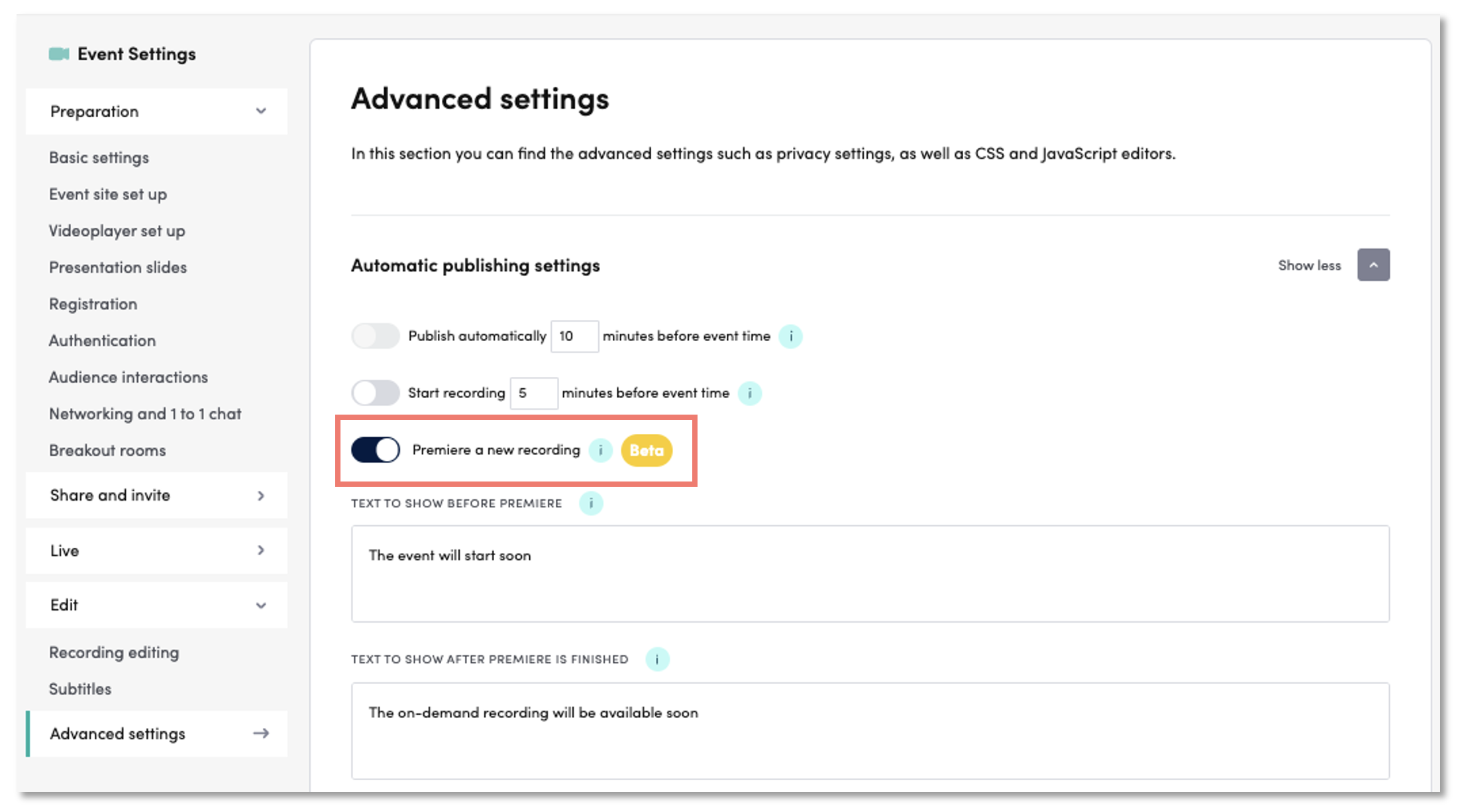
- To create a Premiere, go to Advanced Settings → Automatic publishing settings → Premiere a new recording. Turn on the setting to create a scheduled premiere for the event time. You can also modify the texts your audience sees before and after the premiere.
- Change the Event State to Premiere to make sure that the uploaded and edited video is processed to multiple bitrates before the premiere starts.
- Click Preview to explore how your event site will look before, during, and after the premiere.
- Currently you can only preview the countdown page. If you want to check how the video itself looks, temporarily disable the Premiere a new recording setting to see the recording on the preview page.
- Now your Premiere is ready to go.
What happens when you create a Premiere
Before your Premiere starts
- If you have enabled registration, your event site cannot be accessed without it.
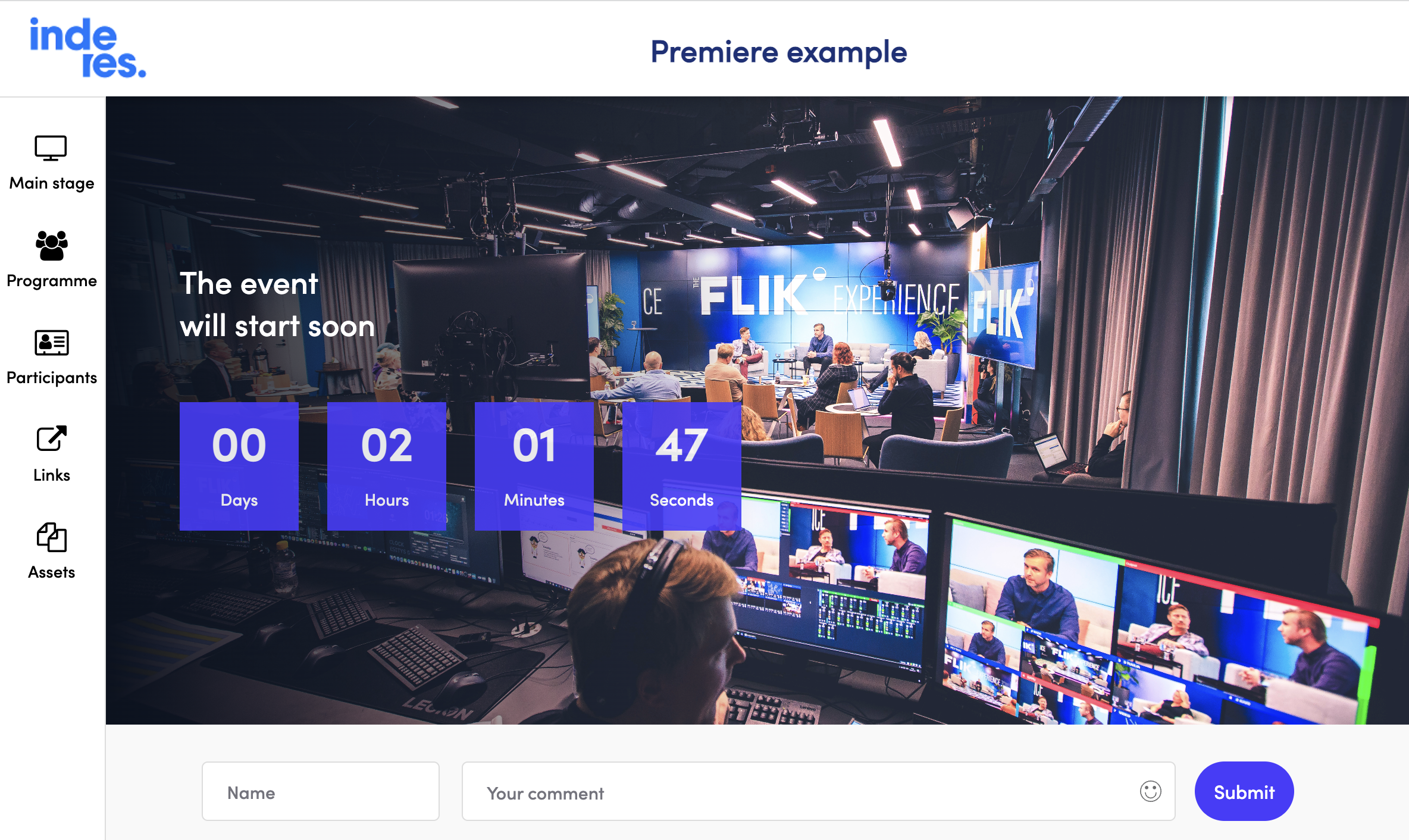
- On the event page, your audience will see a countdown timer and the text you set up in Premiere settings. When the event time is reached, the event page will automatically go live.
During your Premiere
- Your recording is streamed to the audience. You can focus on audience feedback and chat questions.
- If you indexed slides or polls in Editing and publishing a recording, those will be activated during the live.
After your Premiere
- When your recording ends, the event site will automatically turn into a published recording. Depending on your recording size, this might take a few minutes.
- Your event is now available as a recording for people who missed the Premiere.
Can't find what you're looking for?
Our AI assistant is here to help you find the information you need.