
How to control slides during live
Last updated: August 13, 2025
Videosync supports separating the video stream and presentation slides, with slides synchronized to the video. While you can also use picture-in-picture (PiP) compositing on the production side or in Web Studio to stream video with embedded slides, keeping them separate offers several benefits:
- Indexability — Slides become clickable navigation points in recordings, allowing viewers to jump to specific sections.
- Viewer control — Participants can choose their preferred view: video and slides side by side, video fullscreen, or slides fullscreen.
- Improved AI transcripts — Slide content can be used to enhance the accuracy of AI-generated transcripts.
There are three ways to control slides in Videosync, depending on your streaming setup:
- Live Control Room — Used with RTMP streams (OBS, vMix, hardware encoders). Typically operated by the production crew or streaming manager.
- Presenter Slide Changer — A lightweight interface for speakers to control their own slides. Typically used by presenters in studio environments or remotely during RTMP streaming.
- Web Studio — The browser-based production interface for the entire streaming production, including slide control.
Live Control Room
When streaming with RTMP encoders, you can control slides directly in the Live Control Room. This is the most common option for production crews managing the stream.
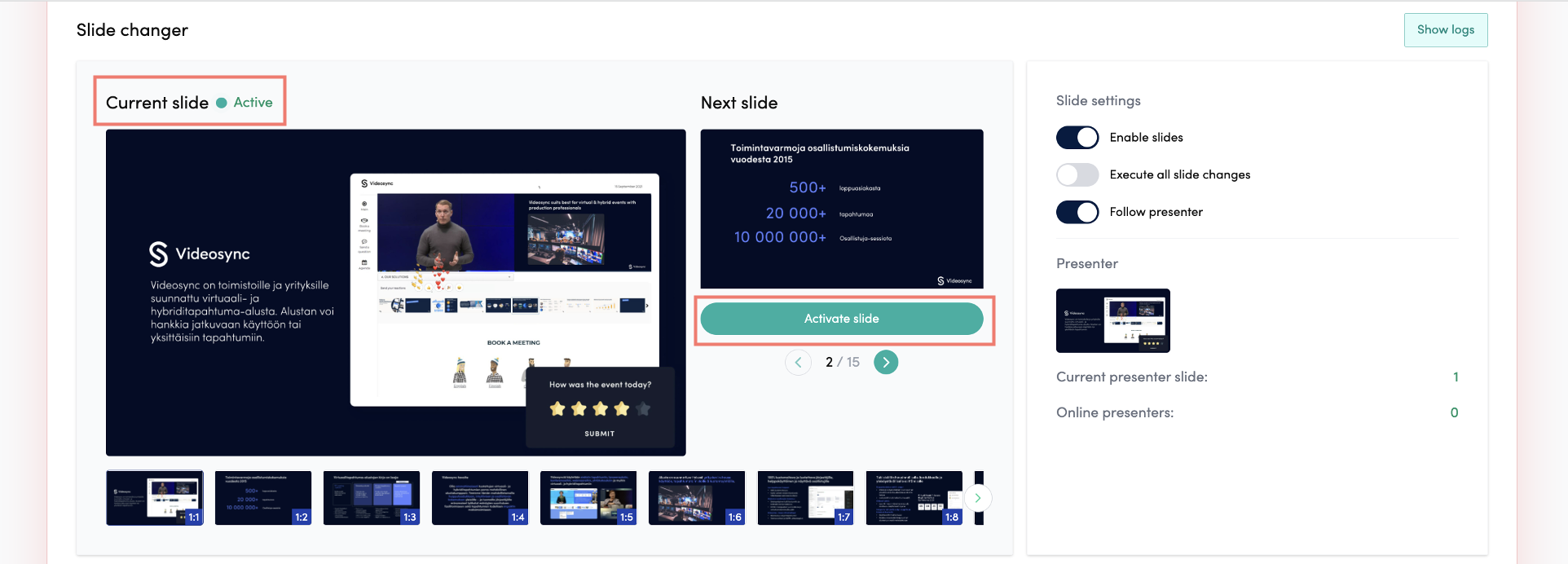
The Current slide section shows the currently active slide when you’re live. Select a slide and click Activate slide to display it on the event page.
For more details on the Live Control Room, see How to control live event with Live Control Room.
Presenter Slide Changer
The Presenter Slide Changer allows speakers to control their own slides without needing Videosync credentials. This is ideal for presenters in a studio environment or joining remotely during RTMP streaming.
You can find the Presenter Slide Changer link in the top right corner of the Live Control Room.

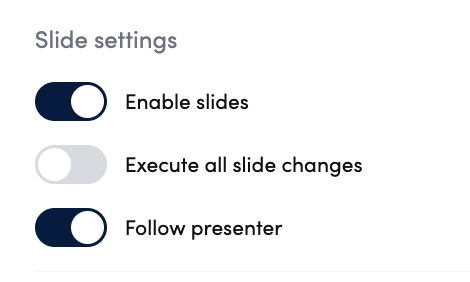
Ensure that Follow presenter is enabled in the Live Control Room, so that slide changes made by the presenter are displayed on the event page.
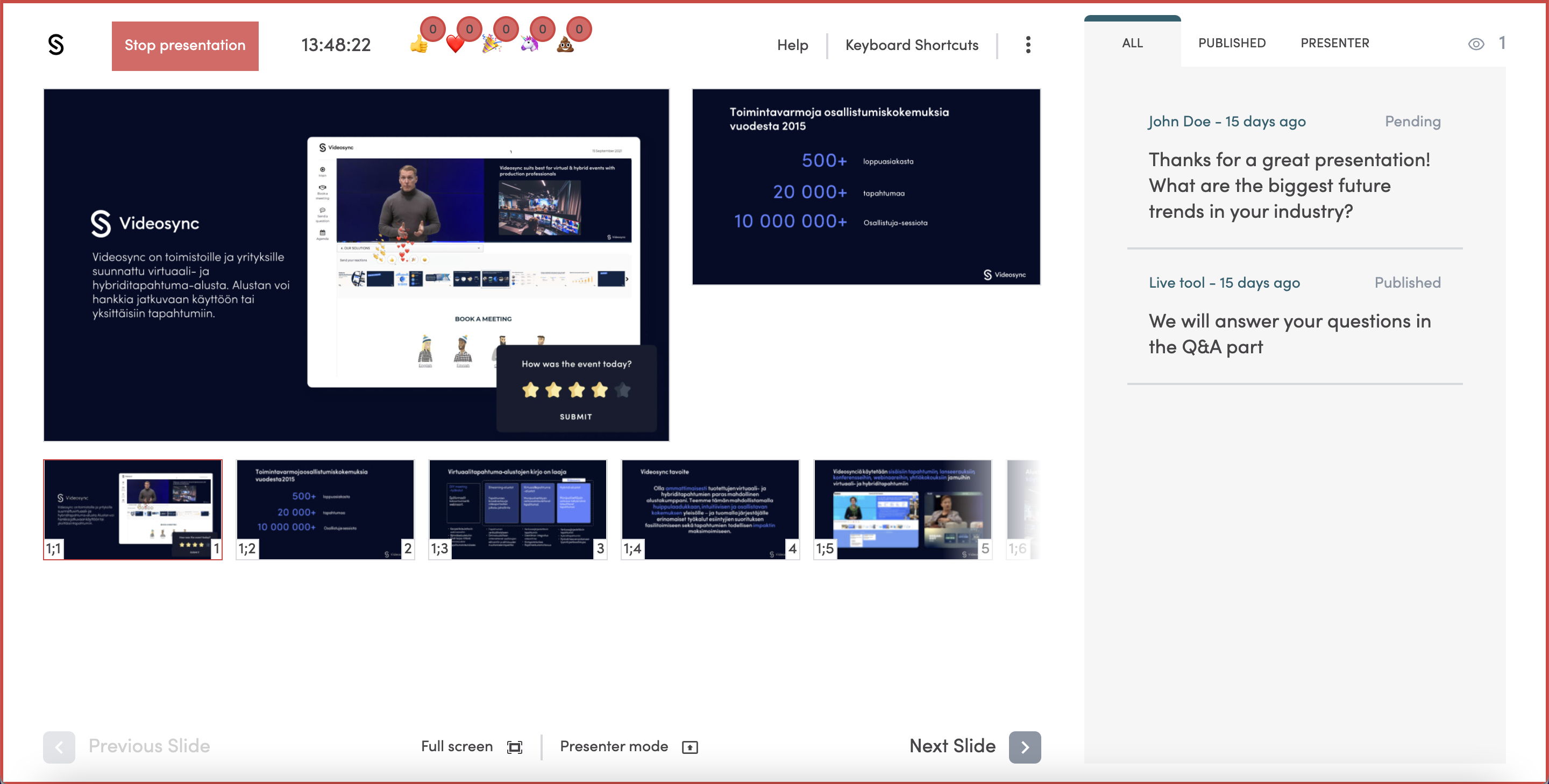
In the Presenter Slide Changer view, the presenter can activate their turn by clicking Start presentation. After this, their slide changes will be streamed to the event page. If needed, the moderator can override slide changes from the Live Control Room.
Web Studio
Web Studio is a browser-based production interface that provides full control over the streaming production, including slides.
You can find the Web Studio link in Videosync Admin under Live → Web studio.
Can't find what you're looking for?
Our AI assistant is here to help you find the information you need.